How to merge, split and reorder PDF pages
Combine documents, remove blank pages, fix sideways scans and split a PDF into separate files with a visual workspace and undo.
By ToolsNow · Published · updated
If your documents are already PDFs, you can combine and rearrange their pages without converting them to pictures first. Open them in the PDF workspace, check the previews and prepare one final download.
This walkthrough uses a report and a receipt as an example. The same steps work for other supported PDFs, whether you need one combined document or several smaller files.
Add the documents and check their order
Choose Choose PDFs and select your report. Each page appears as a thumbnail with its source filename and original page number. Use Add more PDFs to append the receipt without replacing the report.
Open a page preview when a thumbnail is too small to identify the content. This is especially useful for pages with similar headings or scans containing small text.
The workspace accepts up to 500 source pages and a combined source-file size labelled 100 MB (100 MiB). Your device may need a smaller batch. If a file is rejected, read the message before trying another copy; encrypted documents and detected interactive form or signature fields are rejected.
If you need to retain a form or validate a digital signature, keep that document in a workflow designed for those features. A flattened copy may be useful for reading, but it is no longer the same interactive or signed document.
Move, remove and rotate pages
Drag a page to a new position, or use its Earlier and Later buttons. The buttons also work when dragging is awkward on a phone or when using a keyboard.
Move the receipt after the report page that refers to it. If your own documents also contain blank pages, select those and choose Remove selected. For a sideways scan, select it and choose Rotate left or Rotate right, then open the larger preview to check it is upright.
The practice files below have no blank or sideways pages. They exercise merging, moving and extracting; removal and rotation are available when your document needs them.
Undo restores the previous edit; Redo reapplies it. The workspace keeps up to 40 editing steps during the session. Clearing the workspace or leaving the page clears that history, so download your result before closing it.
Save everything as one PDF
Choose Merge PDFs or stay in Arrange pages. All pages still shown are included in the combined document, in the displayed order.
Check the output summary, enter a filename and choose Prepare download. A Download PDF link appears once the file is ready. Open the saved copy and confirm the page count, first page, last page and any sections you moved.
Selecting a checkbox marks a page for an edit. It does not exclude the other pages from a normal combined export. To save only the selected pages, use the extraction mode below.
Split the document into separate files
Switch to Split & extract. Your documents and edits remain in place. Choose the method that matches the result you want:
| Result you need | Method |
|---|---|
| One PDF for every page | Every page as a separate PDF |
| A six-page report split into three two-page documents | Groups of N pages, with 2 pages per PDF |
| One document containing pages 1–2 and another containing pages 4 and 6 | Custom ranges: 1-2 on one line and 4,6 on the next |
| One PDF containing just the checked pages | Extract selected pages into one PDF |
Ranges use the current page order, which may differ from the page numbers in the source document. Check the preview after rearranging pages. Within each range line, selected positions are exported in ascending order: entering 3,1 does not reverse those two pages. Move pages in the workspace first if you need a different order.
Multiple output PDFs download together in a ZIP; a single result downloads as a PDF. Repeating a page on separate lines puts it into separate output files. The export is limited to 500 output pages, including repetitions.
What the export preserves
The workspace copies existing page content, including text, graphics, page dimensions and rotation. It does not make page images as an intermediate step. Existing text objects can carry over, but a scan does not gain searchable text from being merged.
Do not assume that every document feature survives a page operation. Bookmarks, attachments, document metadata, internal links and accessibility structure are not guaranteed to carry over correctly. Interactive forms and signature fields are rejected rather than treated as ordinary pages. Keep the original when those features matter.
For other tasks, use PDF cropping, page numbering or watermarks. These are separate tools, so download your arranged PDF before opening it in the next one.
Try it yourself
Download the original ToolsNow two-page practice report and one-page practice receipt. These are fictional documents created for this exercise; you may reuse them freely.
- Open Merge PDF and choose both files, with the report first. The headings read A — Project summary, B — Materials checklist, then C — Practice receipt.
- On the receipt page, choose Earlier once. The new order is A, C, B.
- Prepare the combined PDF and save it. Reopen the download: it should contain three pages, with the receipt between the two report pages.
- Search the downloaded PDF for BIRCH. The word belongs to the receipt. This checks the copied text layer as well as the page order.
- Switch to Split & extract, choose Custom ranges, and enter
1,3. Those positions now refer to A and B. The resulting two-page PDF should omit the receipt.
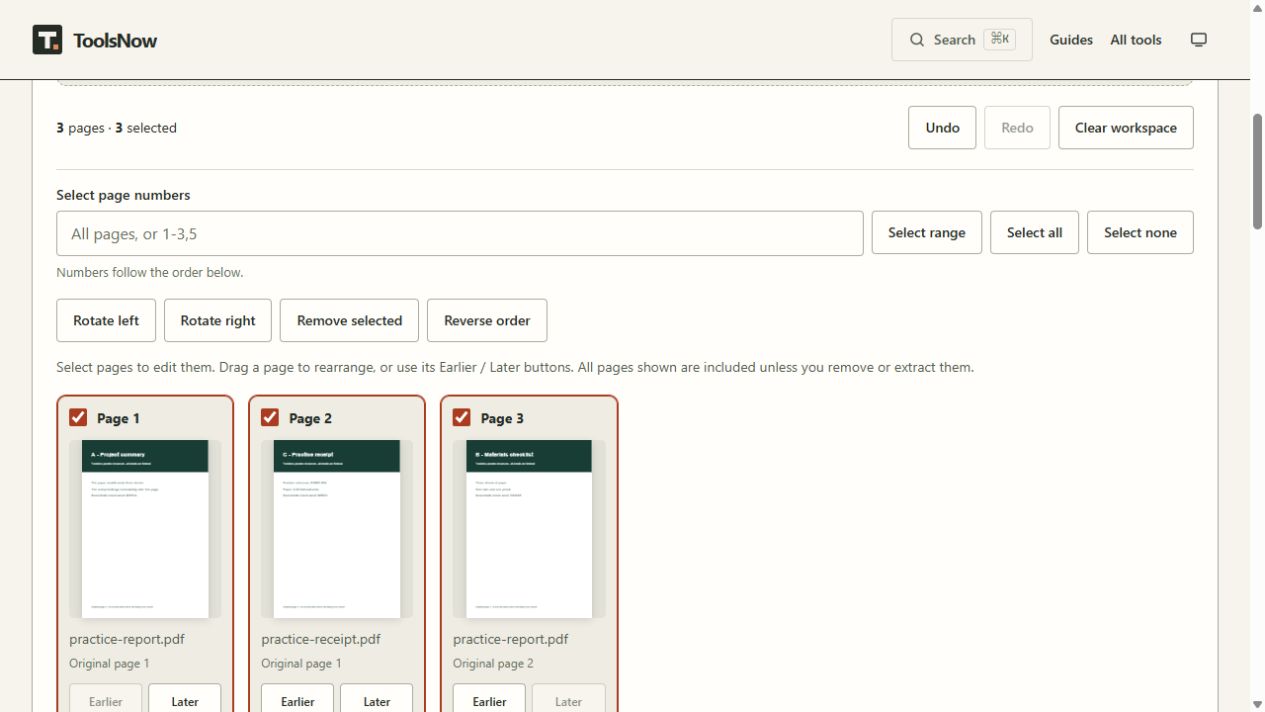
The labels printed at the foot of the pages remain the original page numbers. They do not change when you move a page. Use the workspace positions for extraction, and use the printed headings to verify what was actually saved.
This exercise checks ordinary text and graphics. It does not establish preservation of signatures, interactive forms, bookmarks or accessibility tagging.
Related guides
-
PDF crop boxes: visible margins and hidden content
Understand MediaBox, CropBox, TrimBox and BleedBox. Learn why changing PDF margins can hide page content without removing it from the file.
-
Scanned PDF vs text PDF: copying, search and OCR
Check whether a PDF has an extractable text layer, understand what OCR adds to scans and troubleshoot text that will not copy or search correctly.
-
Why compressing a PDF can make it bigger
Learn why rebuilding PDF pages as images can increase file size, when it can help scans and what happens to searchable text in the exported copy.
Last reviewed 2 October 2026.
Published by ToolsNow. Read how tools and sources are checked.
Found a mistake or an outdated detail? Send a correction with the article title and the detail to review.