Image Converter: JPG, PNG, WebP, HEIC & More
Change a picture to the format your app or website accepts. Preview the new background, dimensions and file size before downloading one image or a batch.
Runs in your browser — your input is not uploaded to ToolsNow.
Loading your workspace…
See what JPG does to transparency
Open the transparent PNG card. Save one PNG and one JPG with a white background, then compare their outer borders. Try the HEIC card separately to practise opening a phone-photo format.

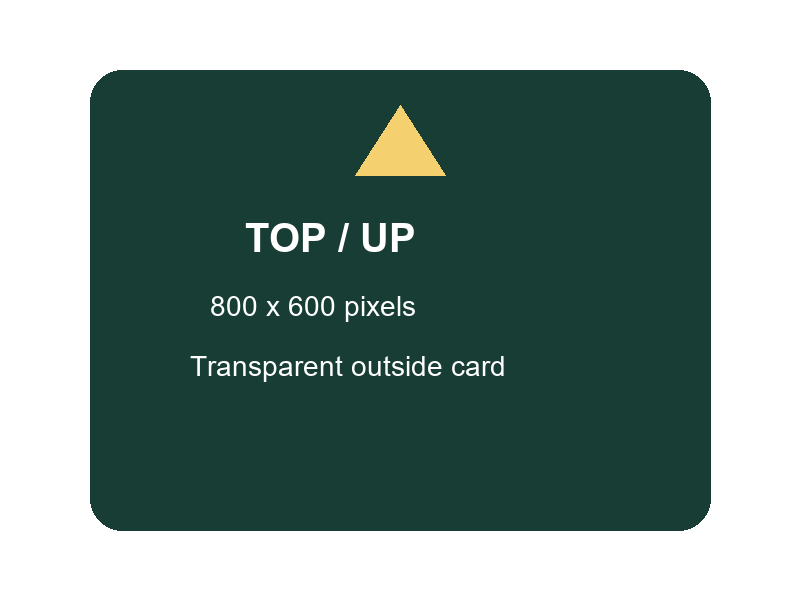
ToolsNow practice files with fictional details, free to download and reuse.
How to use
- Choose images. Open the originals and select a picture in the workspace. Use a small batch first if the files are large.
- Choose Save as. Pick the destination’s required format. Set a background for JPG or BMP, and adjust Quality where offered.
- Make any final edits. Use Resize, Crop or Rotate & flip without reopening the picture. The workspace combines these edits before encoding.
- Save the result. Check Output and File size, then download the selected image. For a batch, use Prepare all as ZIP followed by Save ZIP.
Questions
Which format should I choose?
JPG is a useful choice for photo uploads. PNG suits transparent graphics and sharp lettering; WebP or AVIF may make compact web images if the destination accepts them. Changing a blurry JPG to PNG will not bring back lost detail.
What can I open and save?
Common inputs include JPG, PNG, WebP, HEIC, AVIF, TIFF, GIF, SVG and Photoshop files. Open Supported formats and export details for the full list, and use Save as for available outputs. HEIC is input-only; camera RAW, PDF, EPS and AI files are not supported. Unusual variants can still fail.
Why did my transparent border turn solid?
JPG and BMP output need a solid background. Choose the colour under Fill transparent areas, or use PNG, WebP or AVIF when transparency must remain. Check the saved file against the background where it will appear.
Will animation, layers and metadata carry over?
No. The export is a flattened, 8-bit sRGB still: the first frame of an animation, the first page of a multipage file or the saved Photoshop composite. SVG becomes pixels, without loading linked images or external fonts. Source profiles and metadata are stripped, but visible personal details and filenames still need review.
Are batch conversions uploaded?
No files are uploaded for conversion. Prepare all as ZIP processes them on your device with the current settings; check any failures before saving. The processor downloads on first use, and the page can make other network requests to load resources.
Published by ToolsNow. How tools and sources are checked · Report a problem