How to convert HEIC photos to JPG without uploading them
Convert one HEIC photo or a batch to JPG, choose quality and dimensions, and understand what happens to Live Photos, HDR and metadata.
By ToolsNow · Published · updated
If a website or app rejects a HEIC photo, a JPG copy may be all you need. Open the HEIC to JPG converter, choose your photo and keep JPG selected as the output.
The converter reads supported HEIC and HEIF files on your device. It includes its own decoder, so it does not rely only on the browser’s built-in support for those formats.
Convert a single photo
- Choose a HEIC or HEIF file from your device. If your photo picker offers format choices, choose the original file when you want to test HEIC conversion.
- Check the preview and keep JPG under Save as.
- Adjust quality if you need a smaller file. Look at faces, lettering and other small details when comparing the result.
- If the receiving website has a dimension limit, switch to Resize and set a width, height or maximum box.
- Wait for Ready to download, check the output dimensions and actual file size, then choose Download JPG.
Renaming .heic to .jpg is not conversion. The image data must be decoded and saved in the new format.
Convert several photos at once
Choose several files and select one in the workspace to preview it. The current format, quality, resizing, crop and rotation settings apply to the batch. Crops use the same percentages on every image, so check portraits and landscapes separately before applying a crop to both.
Use Prepare all as ZIP, then Save ZIP. Unpack the ZIP to access the individual JPGs. Review any reported failures; a ZIP containing successful results does not mean that every selected file converted.
For a large phone library, work in smaller batches. Decoding large pictures takes more memory than their compressed file sizes suggest.
Reduce size without making the photo too small
A JPG can be larger than the HEIC it came from. Conversion solves compatibility, while compression depends on the picture and export settings.
Lower JPG quality gradually and check the preview. If the picture is much larger in pixels than the destination needs, resizing can also help. The image compression tool shows the actual result size rather than promising a fixed saving or exact target.
Keep the original so you can make another export later. Increasing quality on a previously compressed copy cannot restore missing detail.
What happens to Live Photos, HDR and metadata?
This workspace exports one flattened still image with 8-bit sRGB pixels. It does not preserve the video part of a Live Photo, depth information, editing layers or the full HDR range of the original. The export strips source profiles and metadata, including camera and location fields; the output encoder may add its own file information.
Compare colours with the original on the device where they matter. An 8-bit sRGB export is not a guarantee of an identical appearance for every HDR image or embedded colour profile.
If those features matter, keep the HEIC and associated original files. A JPG copy is a separate version for the app or website that needs it.
If a photo will not open
An unusual encoding, damaged file or device-memory limit can prevent conversion. Try one photo at a time and confirm that the original opens in the device’s photo app. If needed, export a standard still image from that app and use it as the starting point.
ToolsNow supports HEIC input but does not save new HEIC files. If your task is choosing between other formats, the JPG and PNG guide explains transparency, quality and compatibility.
Try it yourself
Download the synthetic HEIC practice card and open it in HEIC to JPG. It contains no personal information and is free to reuse. This is an upright, opaque 800 × 600 still image, not an iPhone Live Photo or an HDR camera sample.

Keep JPG, 85% quality and the original size. Wait for the preview and download to be prepared, save the JPG and open it again. Check that its dimensions remain 800 × 600, the arrow points up and the words are readable. A correct result for this file demonstrates a basic conversion; it does not prove that every phone encoding, orientation tag or colour profile will behave identically.
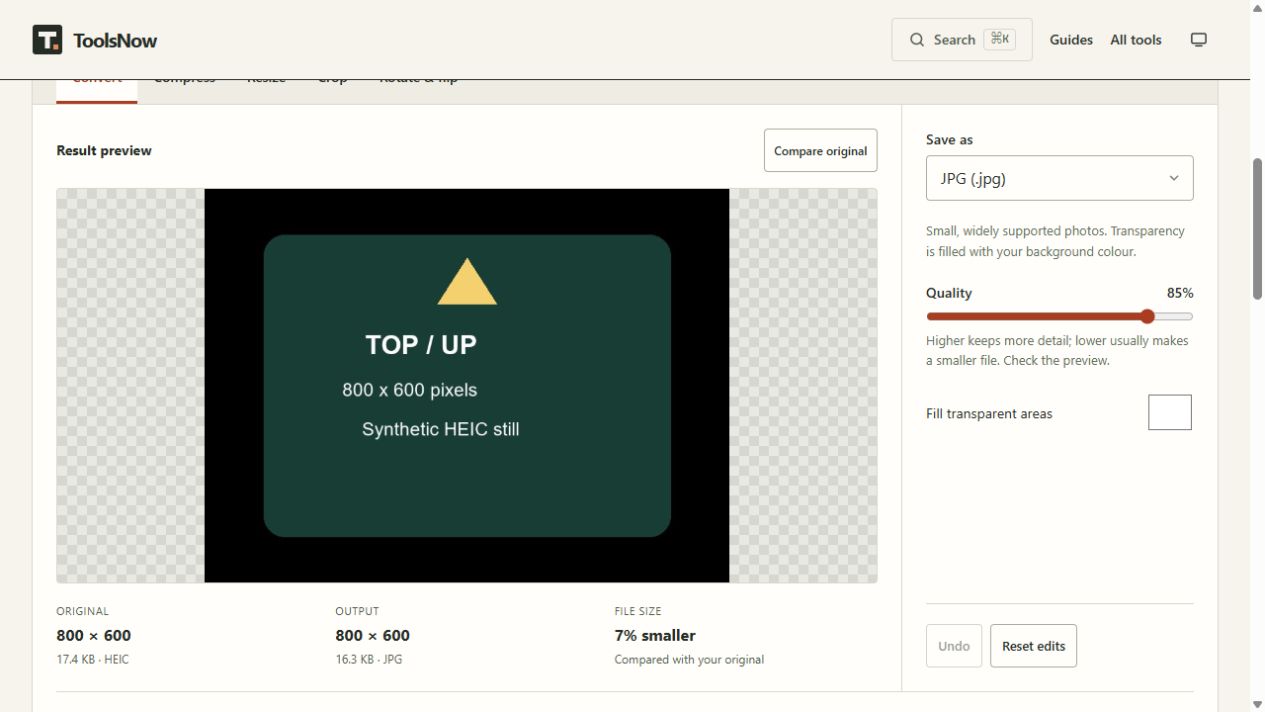
The screenshot shows where to check the output dimensions and quality setting. Its displayed file size is specific to that example, not a saving to expect from your photos.
Check transparent edges separately
Open the transparent PNG version in Image converter. Its outer border is transparent. Export one PNG and one JPG with a white background. Reopen both: PNG should retain the clear border; JPG should replace it with white because JPG has no transparency channel. This is a format difference, not a failed conversion.
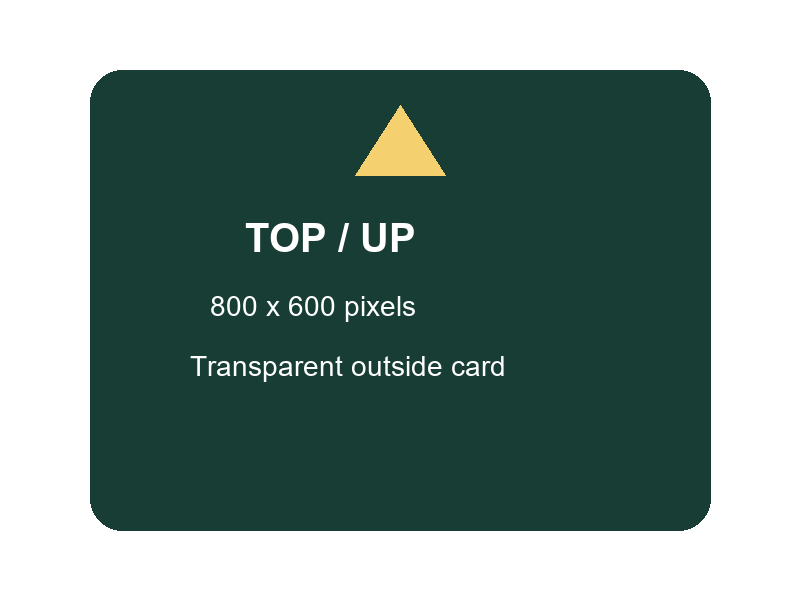
Use the UP marker when trying Rotate and Flip. For a phone photo with an orientation tag, also compare the export against the original as displayed by the phone; this synthetic upright sample does not exercise that metadata case.
The workspace strips source profiles and metadata when exporting. That does not remove information visibly printed in the picture. Our card’s words remain visible, just as a photographed address would remain visible in a real photo.
Related guides
-
JPG vs PNG: which image format should you use?
Choose JPG for many photos and PNG for sharp graphics or transparency. Compare quality, file size and when WebP or AVIF may suit your image better.
-
Photo metadata: check and remove EXIF, GPS and other details
Find camera, location and author metadata in photos. Learn what removal preserves, how orientation can change and why you should check the exported copy.
-
DPI, pixels and print size: which resolution do you need?
Calculate image dimensions from print size and resolution. Understand why changing a DPI label differs from adding pixels, and how PDF export resolution works.
Last reviewed 2 October 2026.
Published by ToolsNow. Read how tools and sources are checked.
Found a mistake or an outdated detail? Send a correction with the article title and the detail to review.